
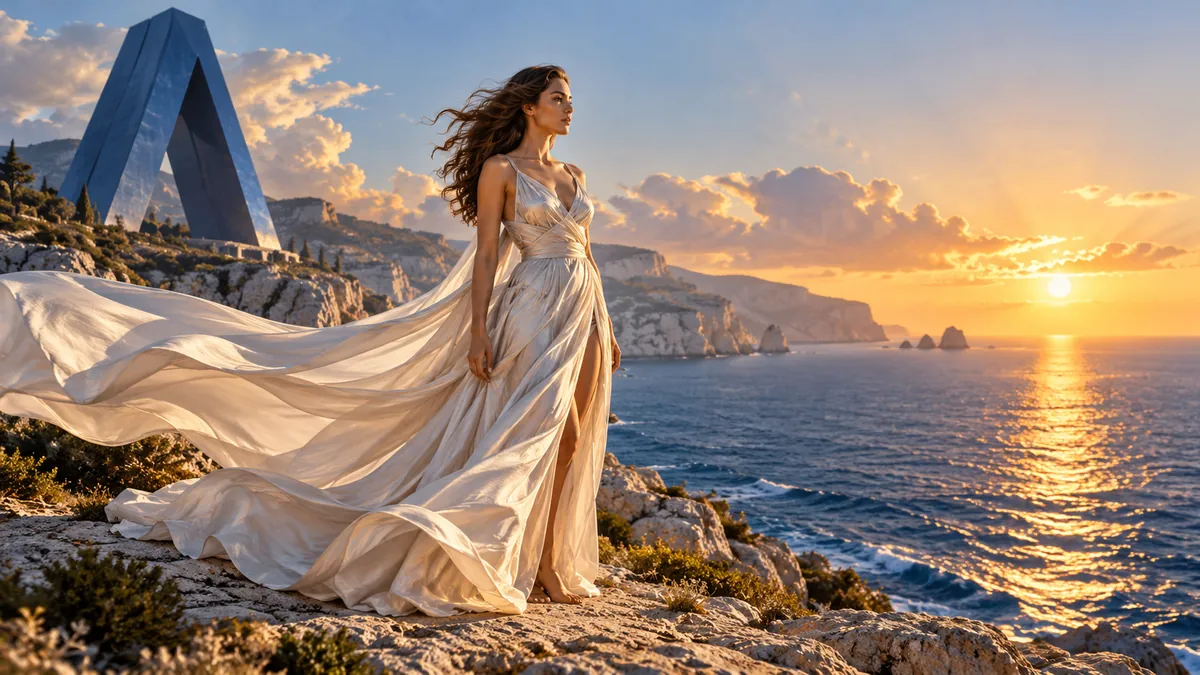
Examples and their prompts
Results from this generator. A prompt can be used as it is, or copied and edited.
Compare the AI video models
All 35 video models, with what each does well, its maximum length and resolution, whether it generates sound, and the inputs it accepts. The facts come from each model's published specifications. Prices come from today's price list and are calculated in the same way as in the generator.
Model list updated
| Model | Suited to | What it does | Length · Resolution | Inputs | Current price |
|---|---|---|---|---|---|
Seedance 1.0 Pro FastBytePlus | Multi-shot video from text or image |
| 2–12 s480p–1080p | Up to 1 image | |
Gemini Omni 1.1 FlashGoogle | Keyframe and image references up to 4K |
| 3–10 s360p–4K | Up to 10 images · 3 videos | |
Gemini Omni FlashGoogle | Image and clip references with audio |
| —— | Up to 6 images · 1 video | |
Grok Imagine Video 1.0xAI | Text and still-image video generation |
| 1–15 s480p–720p | Up to 7 images | |
Grok Imagine Video 1.5 LitexAI | Low-cost draft video clips |
| 1–15 s480p–1080p | Up to 1 image | |
Grok Imagine Video 1.5xAI | Multi-reference video with audio |
| 1–15 s480p–1080p | Up to 7 images | |
Happy Horse 1.0Alibaba | Physically realistic motion-smooth video |
| 3–15 s720p–1080p | Up to 9 images · 1 video | |
Happy Horse 1.1Alibaba | Stable subject and scene referencing |
| 3–15 s720p–1080p | Up to 9 images | |
Kling O3Kling | Reference and edit video modes |
| 3–15 s720p–4K | Up to 16 images · 1 video | |
Kling O1Kling | Image-to-video and video editing |
| 5–10 s— | Up to 4 images · 1 video | |
Kling 2.6 Motion ControlKling | Motion transfer with original audio |
| —720p–1080p | Up to 1 image · 1 video | |
Kling 3.0Kling | Text-to-video with element library |
| 3–15 s720p–4K | Up to 2 images | |
Kling 3.0 Motion ControlKling | Motion control with facial consistency |
| —720p–1080p | Up to 1 image · 1 video | |
Kling 3.0 TurboKling | Faster text and image video generation |
| 3–15 s720p–1080p | Up to 1 image | |
Kling 4.0Kling | Long takes with keyframe control |
| 3–30 s720p–1080p | Up to 10 images · 5 videos | |
MiniMax H3MiniMax | 2K short video generation |
| 4–15 s768p–2K | Up to 9 images · 3 videos · 3 audio | |
MiniMax H3 MaxMiniMax | High-volume video with references |
| 5–15 s480p–768p | Up to 2 images | |
MiniMax H3 Max TurboMiniMax | High-volume first-frame video |
| 5–15 s480p–768p | Up to 2 images | |
Hailuo 02MiniMax | Extreme physics mastery for complex motion |
| 6–10 s512p–1080p | Up to 2 images | |
Hailuo 2.3MiniMax | Expressive characters across art styles |
| 6–10 s768p–1080p | Up to 1 image | |
OmniHuman 1.5BytePlus | Multi-character interaction video generation |
| —— | Up to 1 image · 1 audio | |
Seedance 1.5 ProBytePlus | Joint audio-video with lip-sync |
| 4–12 s480p–1080p | Up to 2 images | |
Seedance 2.0 FastBytePlus | Faster multimodal video up to 720p |
| 4–15 s480p–720p | Up to 9 images · 3 videos · 3 audio | |
Seedance 2.0BytePlus | Real-person-style video generation |
| 4–15 s480p–4K | Up to 9 images · 3 videos · 3 audio | |
Seedance 2.0 MiniBytePlus | Lower-cost 480p video drafts |
| 4–15 s480p–720p | Up to 9 images · 3 videos · 3 audio | |
Seedance 2.5BytePlus | Long multi-reference video clips |
| 4–30 s480p–1080p | Up to 30 images · 10 videos · 10 audio | |
Tencent Video UpscaleTencent | Video enhancement up to 4K |
| —720p–4K | Up to 1 video | |
Veo 3.1 FastGoogle | Lower-cost cinematic video |
| 4–8 s720p–4K | Up to 3 images | |
Veo 3.1 ProGoogle | Cinematic video with first and last frames |
| 4–8 s720p–4K | Up to 3 images | |
Veo 3.1 LiteGoogle | Efficient cinematic video generation |
| 4–8 s720p–1080p | Up to 2 images | |
Wan 2.5Alibaba | Text-to-video with synchronized audio |
| 5–10 s480p–1080p | Up to 1 image | |
Wan 2.6Alibaba | Multi-shot narrative with audio sync |
| 2–15 s720p–1080p | Up to 1 image · 3 videos · 1 audio | |
Wan 2.7Alibaba | Multi-shot narratives and style transfer |
| 2–15 s720p–1080p | Up to 17 images · 1 video · 5 audio | |
Wan 3.0Alibaba | 30-second video from mixed references |
| 2–30 s480p–1080p | Up to 10 images · 5 videos · 5 audio | |
Wan 3.0 PrimeAlibaba | Faster interactive video previews |
| 2–30 s480p–1080p | Up to 10 images · 5 videos · 5 audio |


How to make an AI video
Four steps from a text description or a still image to a video clip.
Choose a video model
Open the model card. Each model lists its tasks (text to video, image to video, references, edit or extend), and switching models keeps the prompt.
Describe the shot or add a frame
Write the prompt, or upload a first frame (and a last frame where the model accepts one). Upload slots appear only for the inputs the selected model accepts.
Set length, resolution and sound
The settings show only what the model supports. The Generate button shows how many credits the run costs before it is clicked.
Generate and download
Select Generate. The clip appears in Recent and in History, where it can be downloaded, renamed, or have its settings reused for the next take.
Reference frames and motion
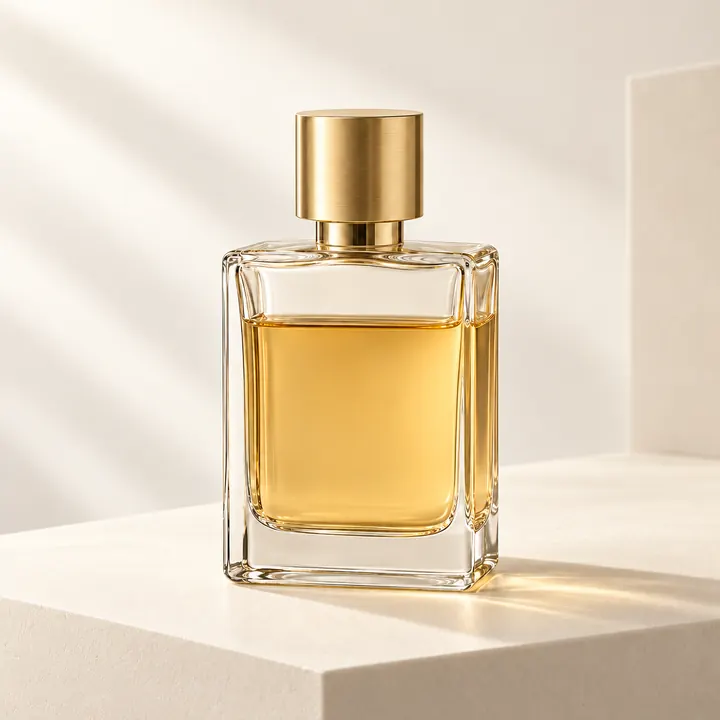
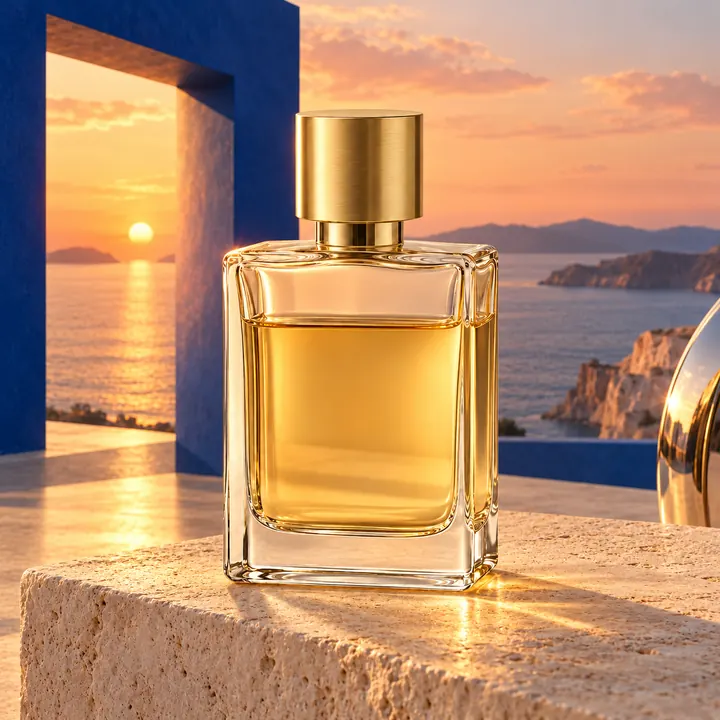
A still image is the starting point: the model keeps its look and adds motion.
- Reference frame
- Generating
- Moving shot
Frequently asked questions
Answers to frequently asked questions.
What is an AI video generator?
An AI video generator creates a new video clip from a text prompt, a still image or reference footage. On Arumi, one of 35 video models is selected, the shot is described and the model renders it. The clip can then be downloaded, or its settings reused for the next take.
Is the AI video generator free?
Generating video uses credits. Free credits, such as the sign-up bonus or daily check-in credits, work here at each model's lowest quality and resolution. Higher settings and paid extras such as generated sound require a credit pack, which is bought once with no renewal. The Pricing page lists the packs.
Which AI video model is the best?
No single model is best: the models differ in motion, realism, length, resolution and sound. The comparison on this page shows what each model does well and where its limits are. A practical approach is to draft short, low-resolution takes on a cheaper model, then render the final shot on the model whose look is preferred.
Can I turn a photo into a video?
Yes. Select a model that lists image to video, upload the picture as the first frame and describe the motion. Some models also accept a last frame and generate the movement between the two. Starting from an image is the most reliable way to control the look of the clip.
How long can an AI video be?
Up to 30 seconds in one generation, depending on the model. Most models allow the length to be chosen before generating. Some models can also extend an existing clip. For longer pieces, the shots can be generated separately and edited together.
What resolution are the videos?
Up to 4K, depending on the model. Higher resolutions cost more credits and take longer, so testing at a lower resolution and rendering the final version at the top setting is a common approach.
Can the videos have sound?
18 of the 35 video models list a sound option and can generate dialogue, effects or music together with the picture. Sound is turned on before generating. The With sound filter in the comparison shows which models these are.
How long does a video take to generate?
From under a minute to several minutes, depending on the model, the length and the resolution. Generation continues if the page is closed, and the finished clip appears in Recent and in History.
How much does an AI video cost?
The cost depends on the model, the length, the resolution and sound. The comparison shows each model's lowest price at today's rates, and the generator shows the price for the exact settings before Generate is clicked. A successful generation is charged exactly the quoted credits.
Can I use the videos commercially?
As between you and Arumi, the videos generated for you are yours to use, subject to our Terms of Use, the terms of the provider that runs the model, and the law, which in some countries does not grant copyright in machine-generated work. You are responsible for having the rights to anything you upload.
What happens to my prompts and uploads?
Uploads are stored privately and open only to you while you are signed in. We do not use prompts, uploads or results to train models of our own. To generate a video, the prompt and reference files are sent to the provider that runs the selected model.
What happens if a video fails or is blocked?
Every request passes a content safety check before it reaches the model. If our check or the model's own safety system stops a generation, or the model fails, the card states the reason and whether any credits were charged. Our check and failures on our side are never charged.
Need more information? Email us at support@arumi.ai.
Create an AI video
Choose a model, describe the shot and check the credits before selecting Generate.